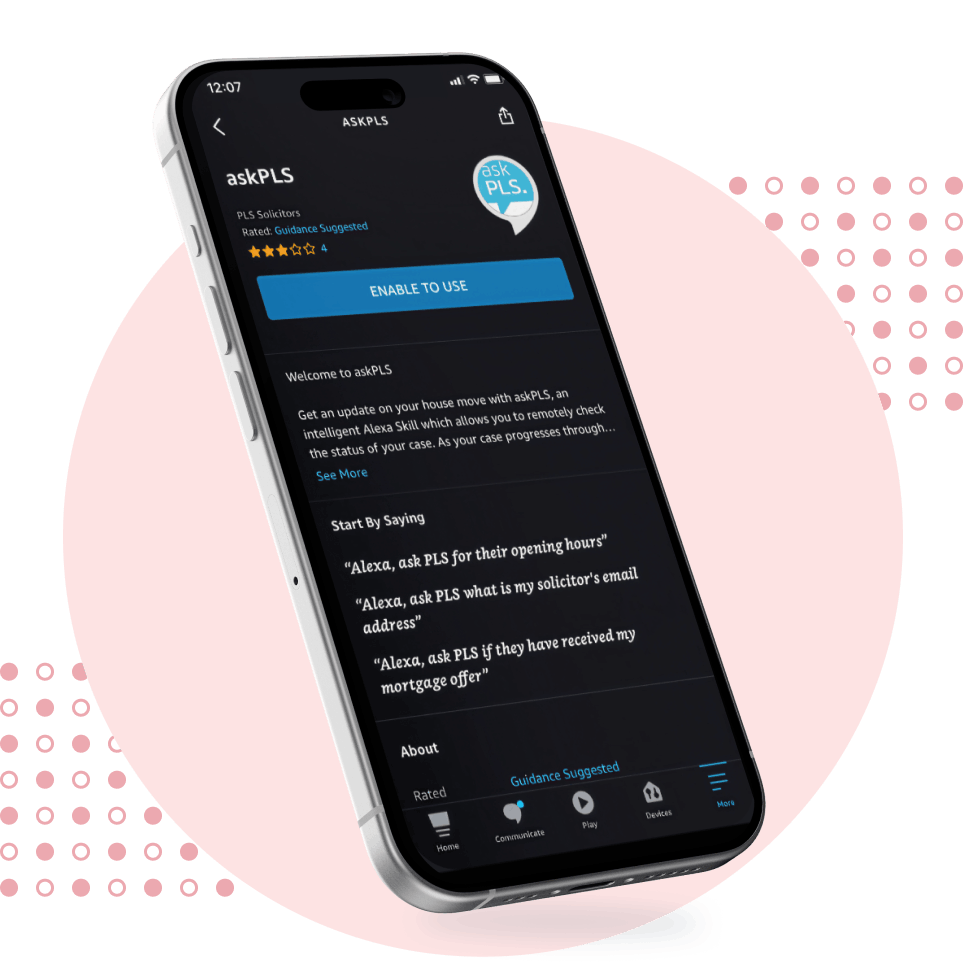
“AskPLS” is now available on Amazon Skill Store.
You can now get updates on your case from Alexa
INSTAnt update
Just say “Ask PLS” to Alexa
As the country’s favourite conveyancer, for us it’s about more than bricks and mortar. As a PLS customer, you can now obtain updates on your house move via our askPLS Alexa Skill. askPLS allows you to remotely check the status of your case and, as things happen during the legal process, the askPLS Skill can update you in real-time. It can also explain 101 different pieces of conveyancing terminology that you may encounter along the way.





New to ask PLS?
Don’t know how to use it?
The Skill allows you to receive information from PLS Solicitors and access to your case by using your Alexa-enabled device. Using the Skill consists of you speaking commands and questions aloud to your Alexa-enabled device, and then receiving responses from us through your Alexa-enabled device. When you use the Skill, Alexa relays your queries to our Skill which, in turn, retrieves the requested information and presents it to you.
SET UP
How to set up Ask PLS?
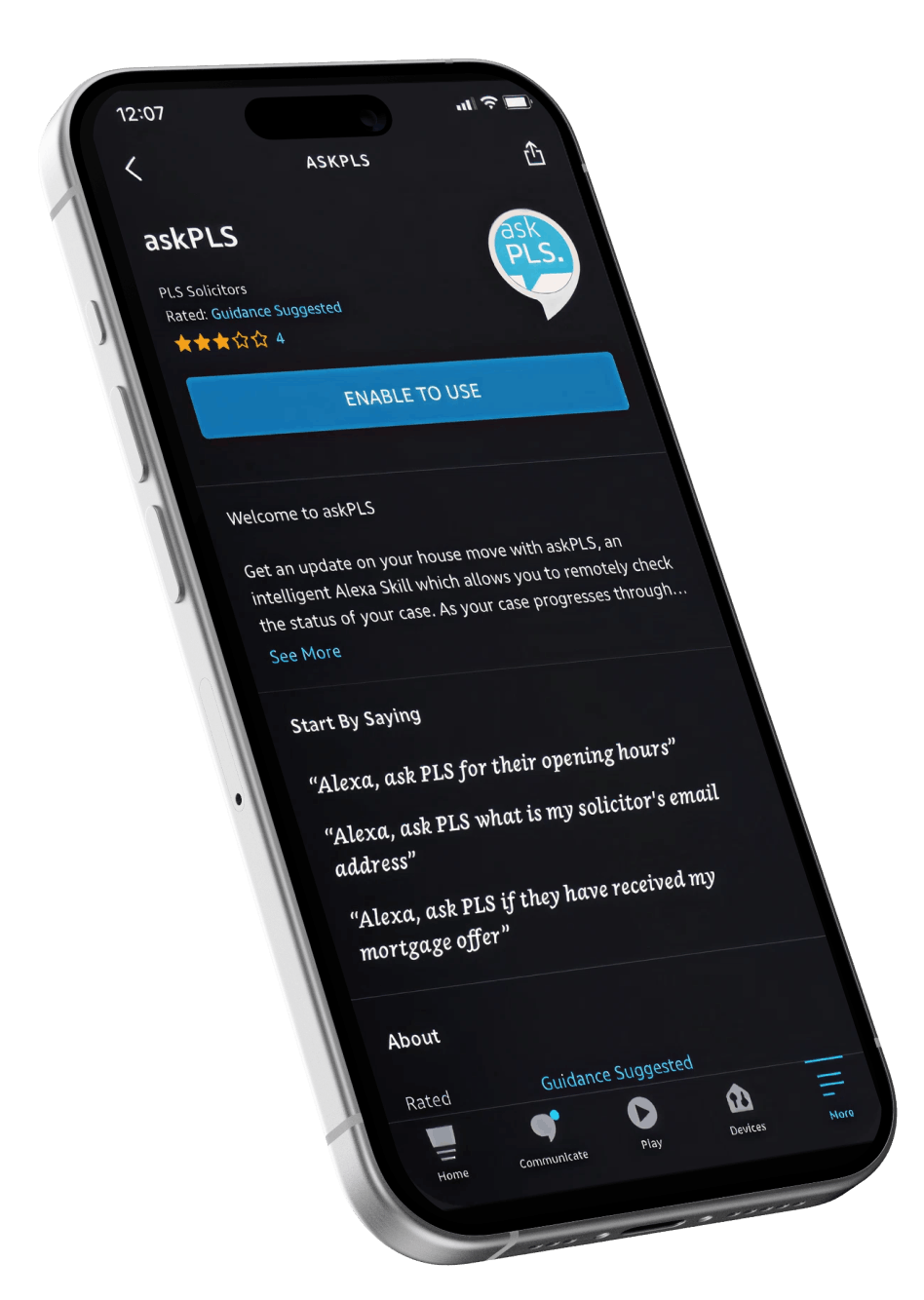
All you need to do is enable our Skill and ask your smart speaker! By choosing the askPLS Alexa Skill you can “askPLS” anything, such as whether PLS Solicitors has received your legal documentation, your solicitor’s contact details, whether they have received your mortgage offer or if exchange of contracts has taken place. Have a sale and a purchase case? No problem, just say ‘Alexa askPLS to enter my purchase case’ or ‘Alexa askPLS to enter my sale case’.
Download the “Skill”
You will need to download the Skill via a smartphone application (the “Amazon Alexa App”). Once the skill has downloaded, you will also need to grant the skill permissions to access your email address and first name.
Grant Permissions
To check Grant Permissions, first ensure that you are in the home screen. - From here click the Navigation button from the sub menu to select “Skills & Games”. If the skill is “Enabled”, select the “askPLS” skill from the list. - Then click “Settings”. This will show if the account permissions have been granted. (You will see GREEN for “Granted” or RED for “Not Granted”). - The Skill requires both to be granted. - Click “Manage Account Permissions” and tick both boxes. You should see GREEN “Granted”. - Once done press “Save Permissions”
To get started
To get started, try one of these example phrases; “Alexa, askPLS for their opening times.” “Alexa, askPLS for my solicitor's contact information.” “Alexa, askPLS if they have received my mortgage offer?” “Alexa, askPLS if we have exchanged contracts.” “Alexa, askPLS what fees there are on my case."